Documentation Index
Fetch the complete documentation index at: https://docs.openai-nebula.com/llms.txt
Use this file to discover all available pages before exploring further.
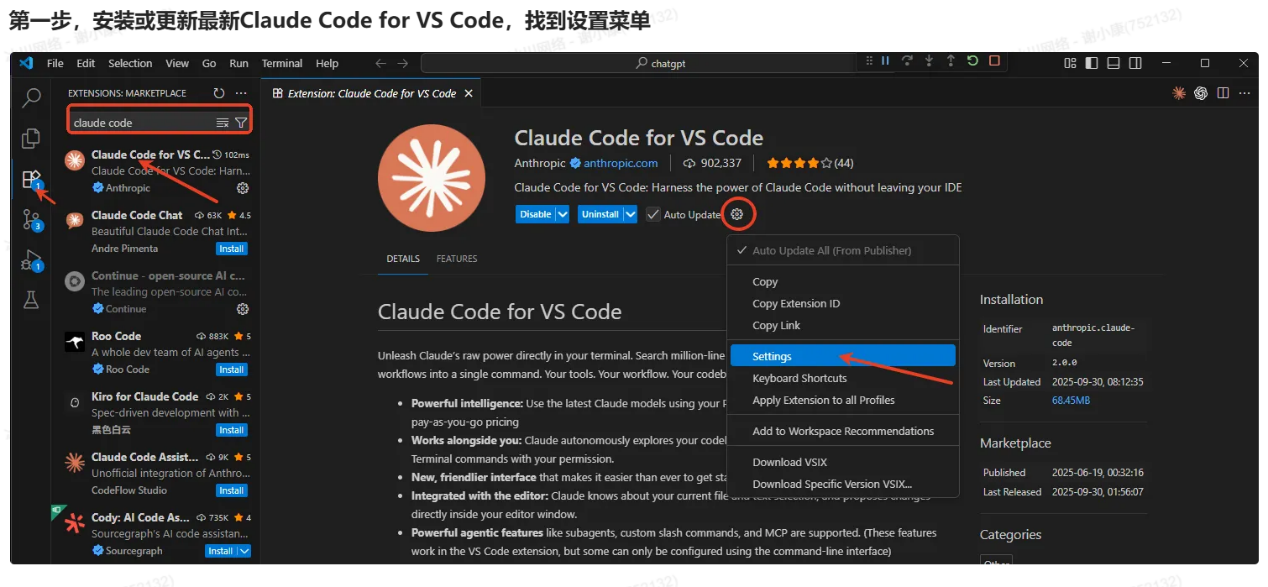
Step 1: Install or Update Claude Code Extension
- Open VS Code editor, go to the left “Extensions” panel (Shortcut: Ctrl+Shift+X).
- Type “Claude Code for VS Code” in the search box, find the plugin published by Anthropic (ID: “anthropic.claude-code”).
- Core features: Supports latest Claude models, direct terminal calls, codebase analysis, sub-agents/custom slash commands, etc. Some advanced configurations need to be set via command line.
Step 2: Configure settings.json
2.1 Open Configuration File
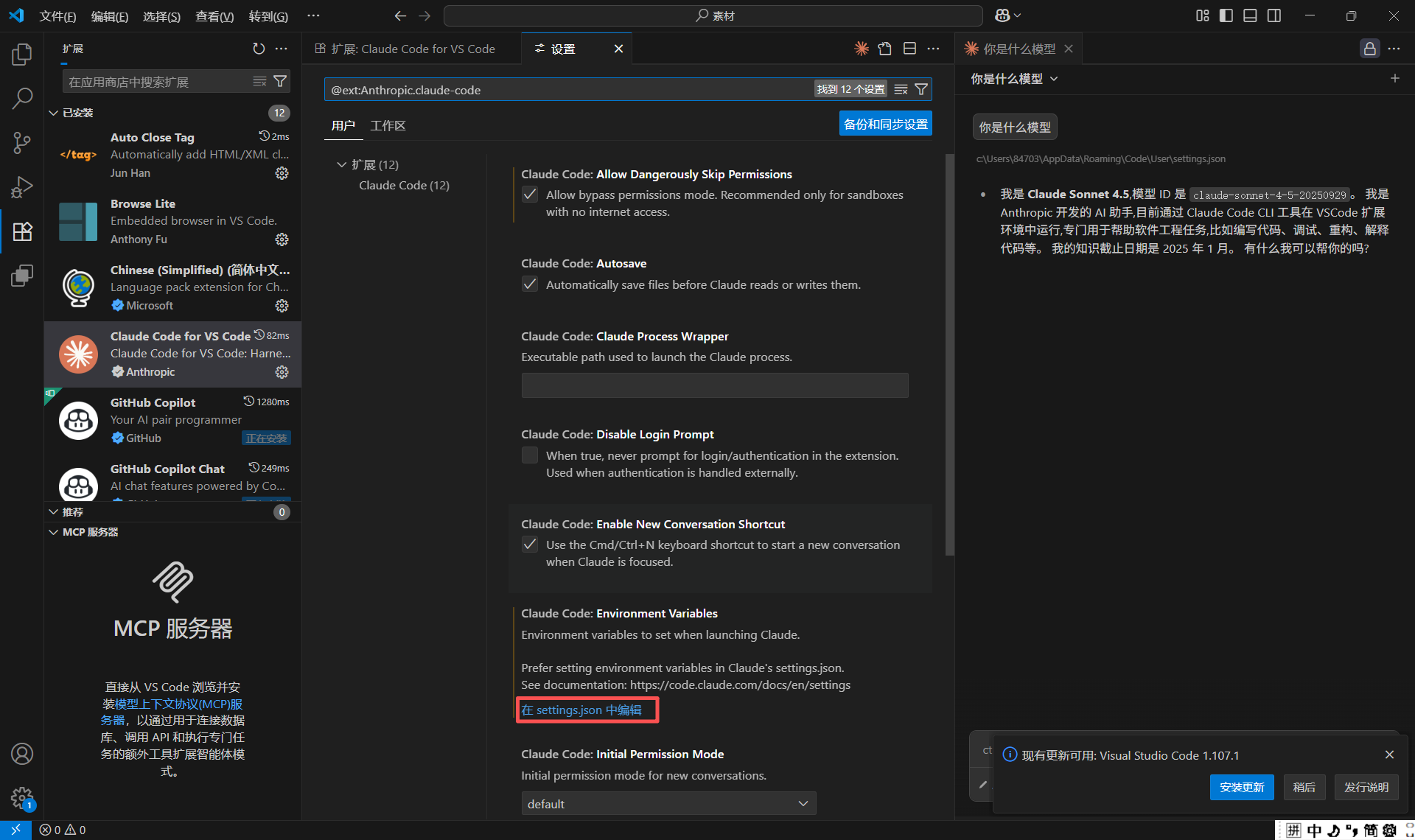
- Click the “Settings” icon in the bottom left of VS Code (or use Ctrl+,), search for “@ext:Anthropic.claude-code” to filter plugin settings.
- Find “Claude-code: Environment Variables” option, click “Edit in settings.json” on the right.